How to send only the signed page of a PDF
Save just the signature page from a longer document and check that it has enough context to send on its own.
By PDF Bop ·
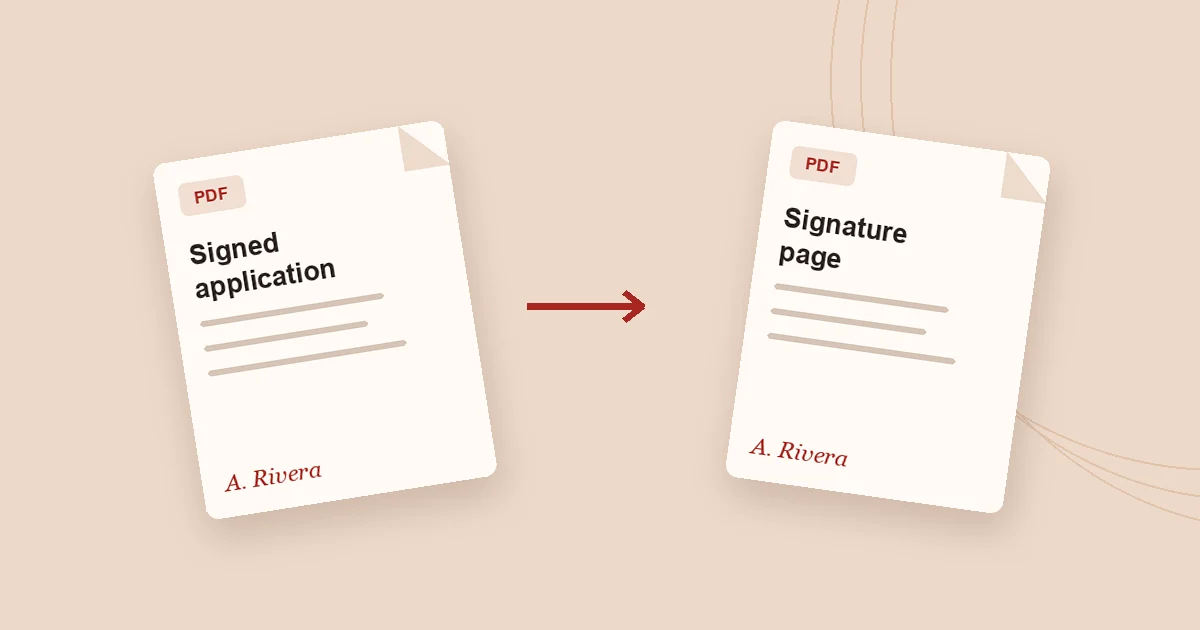
Use this approach when the recipient explicitly asks for the signature page. A detached page can lose context, so keep the full signed copy and check the instructions before sending an excerpt.
Save the signature page as its own PDF
- Start with the signed copy. If you still need to place a signature, use Sign a PDF and download the signed version first.
- Open that version in Extract PDF Pages and find the signature in the preview.
- Under Page ranges, enter the page number shown in the editor. If the recipient asked for the preceding identification page too, include both page numbers.
- Download the selected pages as one PDF and open the result.
- Check that the signature, date, and any required name or reference are visible. Give the attachment a recognizable filename before sending.
If the original has a digital certificate, extract only if the recipient accepts a separate copy. Extracting pages can invalidate or omit certificate information from the original file.