How to sign a PDF with a typed, drawn, or imported signature
Choose a visible signature style, place it on the signature line, and review the downloaded PDF.
By PDF Bop ·
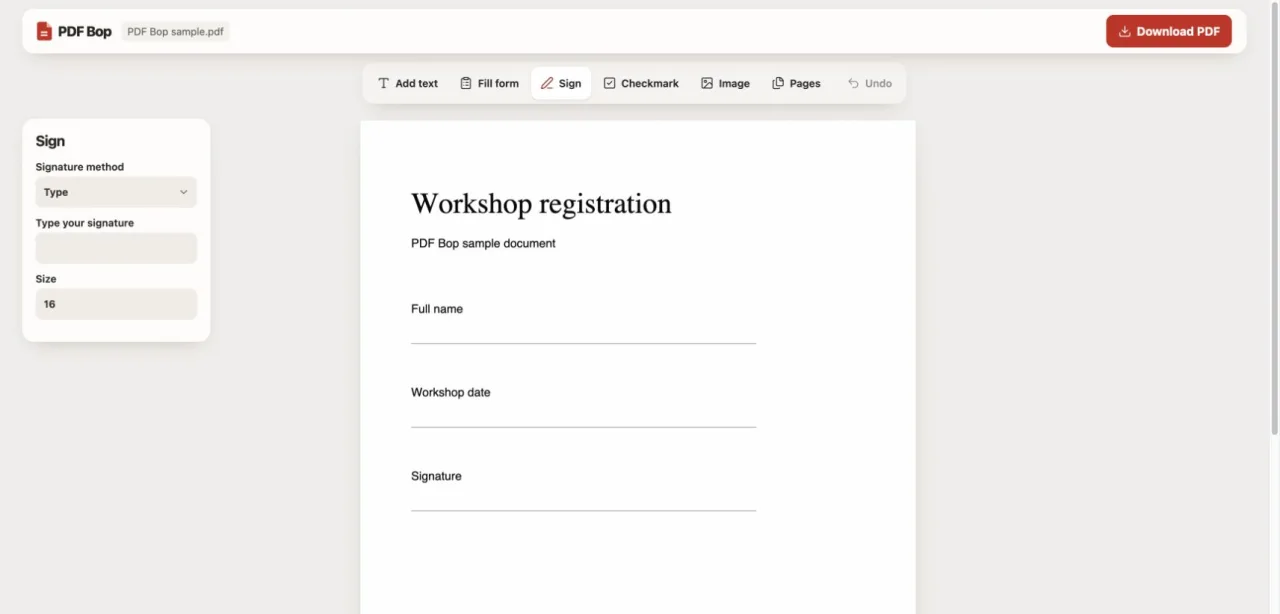
To place a visible signature, open the document in Sign a PDF and choose Type, Draw, or Import image. Pick the method that suits the document and the device you are using.
| Method | When it helps |
|---|---|
| Type | You want to place your name as a styled text signature. |
| Draw | You have a touchscreen, trackpad, or mouse and want to draw the mark yourself. |
| Import image | You already have a signature saved as a PNG or JPG. |
Put the signature on the page
- Open your PDF and select Sign.
- Choose a signature method. For a drawing, select Use drawing when it is ready.
- Click the signature line on the intended page.
- Review the placement. Under Added to this page, use Move or resize as needed.
- Select Download PDF and open the saved copy.
If the form also asks for a printed name or date, use Add text or the form fields for those entries. Place the signature last so it is easier to check the spacing against the other answers.
Check what the recipient expects
A visible signature is part of the page content. If a recipient requires a certificate-backed digital signature or a signing service with an audit trail, follow their instructions for that process.