How to extract nonconsecutive pages from a PDF
Save pages such as 1, 3, and 7–9 as one new PDF while keeping the source document.
By PDF Bop ·
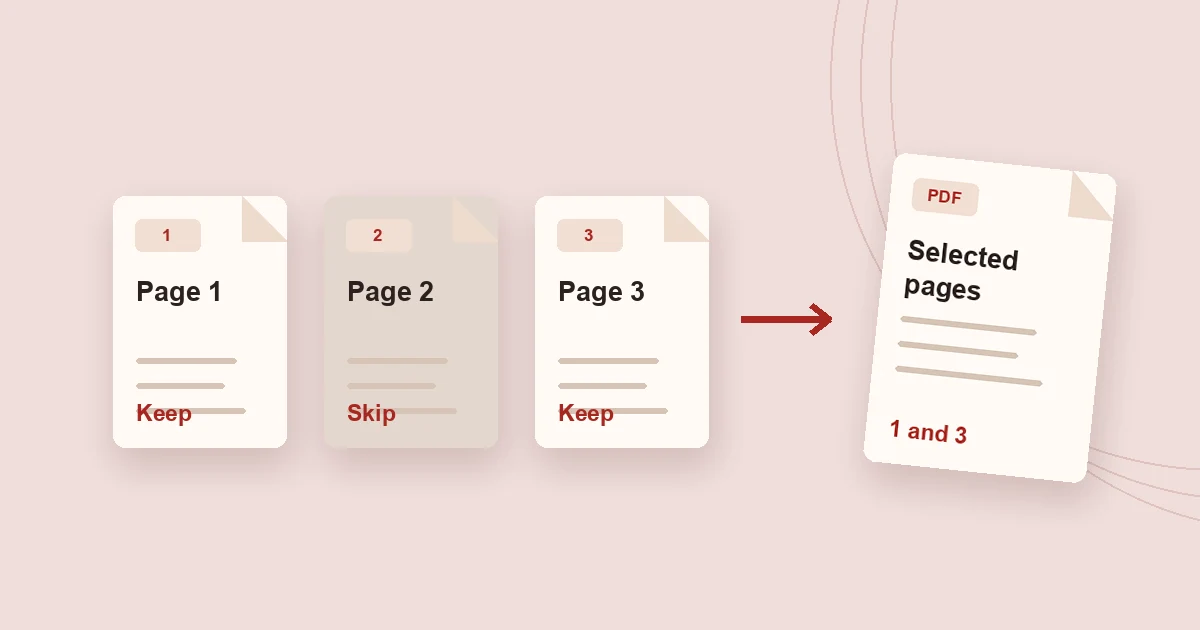
If a recipient wants only a few pages and they are scattered through the file, extract them in one pass. This produces a short PDF you can open and check before you send it.
Enter a mixed page range
- Open the original file in Extract PDF Pages.
- Confirm Download as reads One PDF with selected pages.
- Under Page ranges, enter a mix of single pages and ranges. For an original of at least nine pages,
1, 3, 7-9selects five pages. - Use the Page list and preview to confirm the numbers. If you have moved, deleted, or inserted any pages, use the numbers displayed in the current list.
- Choose Download PDF and verify the export contains the five intended sheets in the right order.
Pick the right output
One PDF is useful when a portal has a single upload slot. If the recipient needs several PDFs, switch to Separate PDFs in a ZIP or run separate extractions. To remove just a few pages and keep all the others, start with Delete PDF Pages.