Split a PDF or extract pages, which output do you need?
Choose a ZIP of separate PDF files or make a single PDF containing only the pages you need.
By PDF Bop ·
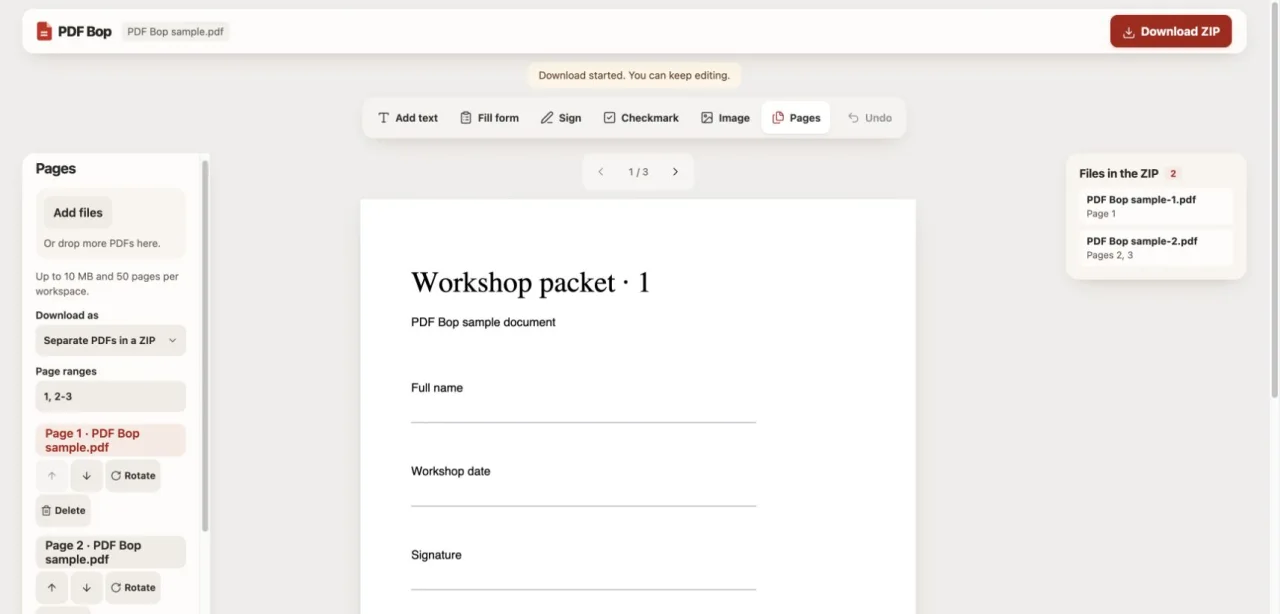
Start with the file you want to hand someone. A ZIP containing separate PDFs is useful when several people each need a different part of a document. A new PDF with selected pages is useful when one person needs a subset in a single attachment.
| From a six-page PDF | Use | Result |
|---|---|---|
| Send chapters 1–3 and 4–6 as different files | Split | Two PDFs inside one ZIP |
| Share pages 2, 4, and 5 together | Extract | One PDF containing three pages |
| Keep every page as its own file | Split with the range blank | Six PDFs inside one ZIP |
Make the export in PDF Bop
Open Split a PDF or Extract PDF pages. Check Download as to confirm the output mode. Type ranges using a hyphen, such as 1-3, 4-6. In split mode, the comma separates files. In extract mode, it separates selections within the same file.
Use the numbered preview to check your selection. Page numbers refer to the current order in the editor, so check them again if you have moved or removed pages. Download, open the output, and verify the first and last page of each selected range.