How to turn JPG or PNG photos into one ordered PDF
Make a PDF with one photo per page and verify the page order before sharing it.
By PDF Bop ·
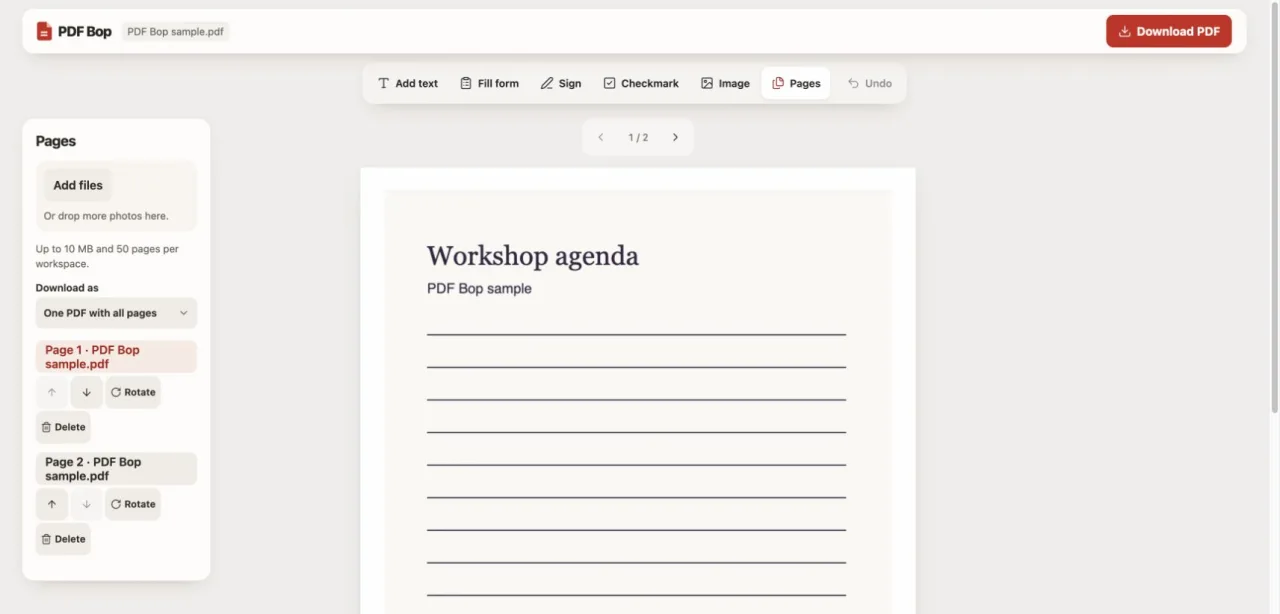
A PDF can keep a set of phone photos in the order you want them read. For a two-sided receipt or ID copy, put the front on page 1 and the back on page 2.
- Go to JPG or PNG to PDF and select your JPG or PNG files.
- Use Add files in Pages if a photo is missing. Each image gets its own PDF page.
- Select each page to check the image, and use the up and down controls if the pages are out of order.
- Rotate an image page if the preview shows it sideways. Download with One PDF with all pages selected.
Open the output to check page count, order, and legibility. If your phone saves photos in HEIC, export a JPG or PNG copy from your photo app first.
If the resulting PDF exceeds an upload limit, open it in the compression tool and compare its measured size. Keep a copy of the original images if you might need a higher-resolution export later.