How to fill a flat PDF form or scan
Recognize a flat form, place answers over blank lines, and use checkmarks where the original fields cannot be typed into.
By PDF Bop ·
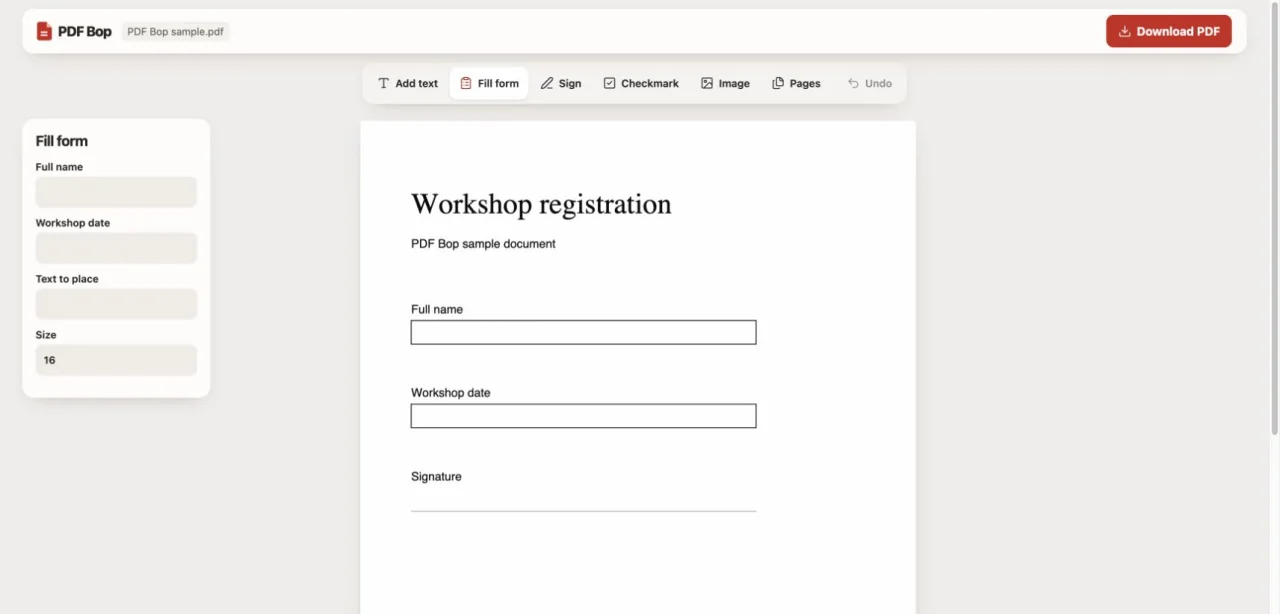
A flat form looks like a form but behaves like a printed page. A scanned copy is often flat too. You can complete either kind by placing text and checkmarks on the document.
Check which kind of form you have
Open the file in Fill a PDF Form Online. If the editor lists named fields under Fill form, use those controls for the corresponding answers. If a blank space has no matching field, you can still place text there.
Complete a non-fillable form
- Pick the page with the first question.
- Enter the answer in Text to place, then click where the answer belongs.
- Repeat for each field. Use Checkmark for squares that need a visible mark.
- Use Pages to review the rest of the document. If the scan is sideways, rotate the affected page before continuing.
- Download the completed PDF and reopen it to check the result.
For a form with several small fields, place one answer at a time. A name, date, and reference number often need different widths. Use Added to this page to adjust placement or remove an extra mark.
Review before sharing
Check that responses line up with their labels and do not cover the printed instructions. If the recipient expects an interactive form with selectable fields, use the original fillable version when available. A visually completed scan gives them a readable page with your answers placed on it.